Docker Compose Plugin
(Experimental!)
The Docker Compose plugin enables bidirectional conversion between Docker Compose YAML files and architecture diagrams. Visualize your container orchestration setups or generate deployment configurations from diagrams.
Installation
npm install @diagrams-js/plugin-docker-compose
Quick Start
Import from Docker Compose
import { Diagram } from "diagrams-js";
import { dockerComposePlugin } from "@diagrams-js/plugin-docker-compose";

const diagram = Diagram("E-commerce Application");

// Register the plugin instance
await diagram.registerPlugins([dockerComposePlugin]);

// Import from Docker Compose YAML
const composeYaml = `
version: "3.8"
name: ecommerce-app
services:
  frontend:
    image: nginx:alpine
    ports:
      - "80:80"
    depends_on:
      - api

  api:
    image: node:18
    ports:
      - "3000:3000"
    depends_on:
      - db
      - cache

  db:
    image: postgres:15
    environment:
      POSTGRES_DB: ecommerce
    volumes:
      - pgdata:/var/lib/postgresql/data

  cache:
    image: redis:7-alpine

volumes:
  pgdata:
`;

await diagram.import(composeYaml, "docker-compose");

// Render the diagram
const svg = await diagram.render();
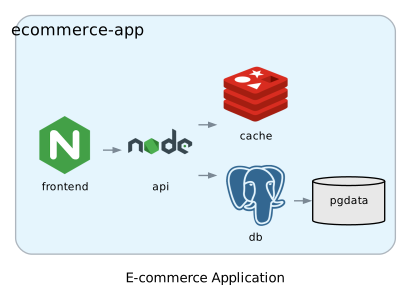
Export to Docker Compose
import { Diagram, Node } from "diagrams-js";
import { dockerComposePlugin } from "@diagrams-js/plugin-docker-compose";

const diagram = Diagram("My Application");

// Create nodes with Docker Compose metadata
const web = diagram.add(Node("web"));
web.metadata = {
  compose: {
    image: "nginx:latest",
    ports: ["80:80"],
  },
};

const db = diagram.add(Node("db"));
db.metadata = {
  compose: {
    image: "postgres:13",
    environment: { POSTGRES_DB: "mydb" },
  },
};

// Create dependency
web.from(db);

// Register plugin and export
await diagram.registerPlugins([dockerComposePlugin]);
const composeYaml = await diagram.export("docker-compose");

console.log(composeYaml);
Features
Import Capabilities
- Parse Docker Compose YAML files - Supports Docker Compose specification
- Smart icon mapping - Automatically maps Docker images to appropriate provider icons
- Cluster organization - Each compose project gets its own cluster
- Dependency visualization - Creates edges for
depends_onrelationships - Network and volume support - Visualizes networks and volumes as separate nodes
- Multi-file import - Import multiple compose files into separate clusters
Export Capabilities
- Generate valid Docker Compose files - Exports to standard Docker Compose YAML
- Service configuration - Includes image, ports, environment, volumes, etc.
- Dependency reconstruction - Rebuilds
depends_onfrom diagram edges - Network and volume export - Includes networks and volumes in output
Image to Icon Mapping
The plugin automatically recognizes common Docker images and maps them to appropriate provider icons.
Images that don't match any pattern use a generic container icon.
Configuration
Custom Image Mappings
You can customize which icons are used for specific Docker images. The plugin supports multiple mapping formats and checks them in this priority order:
- Service name (e.g.,
my-custom-api) - takes precedence - Image name (e.g.,
nginx,postgres) - fallback
import { Diagram } from "diagrams-js";
import { createDockerComposePlugin } from "@diagrams-js/plugin-docker-compose";

const diagram = Diagram("My Application");

// Create plugin with custom image mappings
const plugin = createDockerComposePlugin({
  imageMappings: {
    // 1. Provider icon mapping - use built-in provider icons
    "my-custom-api": {
      provider: "onprem",
      type: "compute",
      resource: "Server",
    },
    "company-db": {
      provider: "onprem",
      type: "database",
      resource: "Postgresql",
    },

    // 2. Direct URL string - use a custom image URL
    "my-frontend": "https://example.com/react-icon.png",

    // 3. URL object - same as string but as object
    "my-backend": {
      url: "https://example.com/node-icon.svg",
    },

    // 4. Iconify icon - use icons from Iconify (https://iconify.design/)
    // Format: { iconify: "prefix:name" }
    "docker-service": {
      iconify: "logos:docker",
    },
    "aws-service": {
      iconify: "logos:aws",
    },
    kubernetes: {
      iconify: "logos:kubernetes",
    },
  },
});

await diagram.registerPlugins([plugin]);
Iconify Icons
The plugin supports Iconify icons, which provides access to 200,000+ open source icons. Use the { iconify: "prefix:name" } format:
- Browse icons at https://icon-sets.iconify.design/
- Common prefixes:
logos:(technology logos),mdi:(Material Design),fluent-emoji:(emoji) - Examples:
{ iconify: "logos:docker" }- Docker logo{ iconify: "logos:aws" }- AWS logo{ iconify: "mdi:server" }- Server icon{ iconify: "logos:kubernetes" }- Kubernetes logo
Icons are automatically fetched from the Iconify API and embedded in the diagram.
Mapping Priority
The plugin first checks for a mapping by the service name, then falls back to the image name:
# docker-compose.yml
services:
  my-api:
    image: nginx:latest # Would normally show nginx icon
// This mapping by SERVICE NAME takes precedence
imageMappings: {
  "my-api": { iconify: "logos:aws" }  // Shows AWS icon instead of nginx
}

// This mapping by IMAGE NAME is the fallback
imageMappings: {
  "nginx": { iconify: "logos:nginx" }  // Used only if no "my-api" mapping
}
Examples
Visualize a Microservices Architecture
import { Diagram } from "diagrams-js";
import { dockerComposePlugin } from "@diagrams-js/plugin-docker-compose";

const composeYaml = `
version: "3.8"
name: ecommerce-app
services:
  frontend:
    image: nginx:alpine
    ports:
      - "80:80"
    depends_on:
      - api

  api:
    image: node:18
    ports:
      - "3000:3000"
    depends_on:
      - db
      - cache

  db:
    image: postgres:15
    environment:
      POSTGRES_DB: ecommerce
    volumes:
      - pgdata:/var/lib/postgresql/data

  cache:
    image: redis:7-alpine

volumes:
  pgdata:
`;

const diagram = Diagram("E-commerce Application");
await diagram.registerPlugins([dockerComposePlugin]);
await diagram.import(composeYaml, "docker-compose");

const svg = await diagram.render();
Import Multiple Compose Files
Compare staging and production configurations:
const stagingCompose = `
name: staging-environment
services:
  web:
    image: nginx:alpine
  api:
    image: myapp:staging
`;

const productionCompose = `
name: production-environment
services:
  web:
    image: nginx:latest
    ports:
      - "80:80"
      - "443:443"
  api:
    image: myapp:latest
    replicas: 3
`;

const diagram = Diagram("Environment Comparison");
await diagram.registerPlugins([dockerComposePlugin]);

// Each compose file gets its own cluster
await diagram.import([stagingCompose, productionCompose], "docker-compose");
Export with Custom Metadata
import { Diagram, Node } from "diagrams-js";
import { dockerComposePlugin } from "@diagrams-js/plugin-docker-compose";

const diagram = Diagram("Production Stack");

const web = diagram.add(Node("web"));
web.metadata = {
  compose: {
    image: "nginx:latest",
    ports: ["80:80", "443:443"],
    restart: "always",
    labels: {
      "app": "web",
      "env": "production"
    }
  },
};

const api = diagram.add(Node("api"));
api.metadata = {
  compose: {
    image: "myapp:latest",
    environment: {
      NODE_ENV: "production",
      LOG_LEVEL: "info"
    },
    deploy: {
      replicas: 3,
      resources: {
        limits: {
          cpus: '0.5',
          memory: 512M
        }
      }
    }
  },
};

await diagram.registerPlugins([dockerComposePlugin]);
const compose = await diagram.export("docker-compose");
Round-trip Conversion
Import a compose file, modify it, then export back:
const diagram = Diagram("Modified Stack");
await diagram.registerPlugins([dockerComposePlugin]);

// Import existing compose file
await diagram.import(existingComposeYaml, "docker-compose");

// Add a new service
const monitoring = diagram.add(Node("monitoring"));
monitoring.metadata = {
  compose: {
    image: "prometheus:latest",
    ports: ["9090:9090"],
  },
};

// Connect to existing services
const json = diagram.toJSON();
const webNode = json.nodes.find((n) => n.label === "web");
if (webNode) {
  monitoring.to(webNode as Node);
}

// Export modified configuration
const updatedCompose = await diagram.export("docker-compose");
API Reference
dockerComposePlugin
A pre-created plugin instance without configuration. This is the recommended way to use the plugin when you don't need custom configuration.
import { dockerComposePlugin } from "@diagrams-js/plugin-docker-compose";

// ✅ Use the pre-created instance
await diagram.registerPlugins([dockerComposePlugin]);
createDockerComposePlugin(config?)
Factory function for creating a Docker Compose plugin with custom configuration. Use this when you need to customize the plugin behavior.
import { createDockerComposePlugin } from "@diagrams-js/plugin-docker-compose";

// ✅ Create plugin with custom configuration
const customPlugin = createDockerComposePlugin({
  defaultVersion: "3.9",
});

await diagram.registerPlugins([customPlugin]);
Parameters:
config(optional):DockerComposePluginConfigdefaultVersion: Default Docker Compose version for exports (default: "3.8")imageMappings: Custom image to icon mappings (see Configuration section)
Returns: DiagramsPlugin - The plugin instance
Complete Example with All Mapping Types:
const plugin = createDockerComposePlugin({
  defaultVersion: "3.9",
  imageMappings: {
    // Provider icons - use built-in diagrams-js icons
    "my-api": { provider: "onprem", type: "compute", resource: "Server" },
    "my-db": { provider: "onprem", type: "database", resource: "Postgresql" },

    // Custom URL - use any image URL
    frontend: "https://example.com/react.png",
    backend: { url: "https://example.com/node.svg" },

    // Iconify icons - 200,000+ icons available
    docker: { iconify: "logos:docker" },
    k8s: { iconify: "logos:kubernetes" },
    github: { iconify: "logos:github" },
  },
});

await diagram.registerPlugins([plugin]);
Plugin Capabilities
The plugin provides two capabilities:
Importer
- Name:
docker-compose - Extensions:
.yml,.yaml - MIME Types:
text/yaml,application/x-yaml
Exporter
- Name:
docker-compose - Extension:
.yml - MIME Type:
text/yaml
Exported Types
The plugin exports the ImageMappings type for TypeScript users:
import { createDockerComposePlugin, type ImageMappings } from "@diagrams-js/plugin-docker-compose";

// Type your image mappings for better IDE support and type checking
const mappings: ImageMappings = {
  "my-api": { provider: "onprem", type: "compute", resource: "Server" },
  "my-app": { iconify: "logos:docker" },
  "custom-service": "https://example.com/icon.svg",
};

const plugin = createDockerComposePlugin({
  imageMappings: mappings,
});
Best Practices
1. Use Descriptive Service Names
Service names become node labels, so use clear, descriptive names:
# ✅ Good
services:
  user-service:
    image: myapp/users:latest

# ❌ Avoid
services:
  svc1:
    image: myapp/users:latest
2. Store Metadata for Round-trip
When creating nodes programmatically, store compose metadata to enable export:
const node = diagram.add(Node("my-service"));
node.metadata = {
  compose: {
    image: "my-image:latest",
    ports: ["8080:80"],
    environment: { NODE_ENV: "production" },
  },
};
3. Handle Dependencies
Use depends_on in compose or .from() / .to() in diagrams-js to create edges:
# In Docker Compose
services:
  web:
    depends_on:
      - db
// In diagrams-js
web.to(db);
4. Version Your Compose Files
Always include a version in your Docker Compose files for better compatibility:
version: "3.8"
services:
  # ...
5. Use Named Volumes
Named volumes are easier to visualize and manage:
# ✅ Good
services:
  db:
    volumes:
      - pgdata:/var/lib/postgresql/data

volumes:
  pgdata:

# ❌ Avoid
services:
  db:
    volumes:
      - /host/path:/container/path
Troubleshooting
Plugin Not Found
Make sure to register the plugin before using import/export:
// ✅ Correct order
await diagram.registerPlugins([dockerComposePlugin]);
await diagram.import(composeYaml, "docker-compose");

// ❌ Wrong order
await diagram.import(composeYaml, "docker-compose"); // Will fail!
await diagram.registerPlugins([dockerComposePlugin]);
Type Errors with Metadata
The metadata property is now typed as Record<string, any>, so you can access it directly without type assertions:
node.metadata = {
  compose: { ... }
};
Missing Icons
The plugin maps common images to provider icons. If your image isn't recognized:
- Check if it matches one of the patterns in the mapping table
- The plugin will use a generic container icon for unrecognized images
- Use custom image mappings to specify icons:
const plugin = createDockerComposePlugin({
  imageMappings: {
    // Option 1: Use a provider icon
    "my-service": { provider: "onprem", type: "compute", resource: "Server" },

    // Option 2: Use a custom image URL
    "my-app": "https://example.com/icon.svg",

    // Option 3: Use Iconify (200,000+ icons!)
    "custom-app": { iconify: "logos:my-icon" },
  },
});
- You can also manually set icons using provider nodes if needed
Import Fails
Ensure your Docker Compose file is valid YAML:
// Validate before importing
try {
  await diagram.import(composeYaml, "docker-compose");
} catch (error) {
  console.error("Import failed:", error.message);
}
Runtime Support
The Docker Compose plugin supports all diagrams-js runtimes:
- Browser ✅
- Node.js ✅
- Deno ✅
- Bun ✅
Further Reading
- Plugin System Overview - Learn about the diagrams-js plugin system
- Docker Compose Documentation - Official Docker Compose docs